


1. More efficiency.
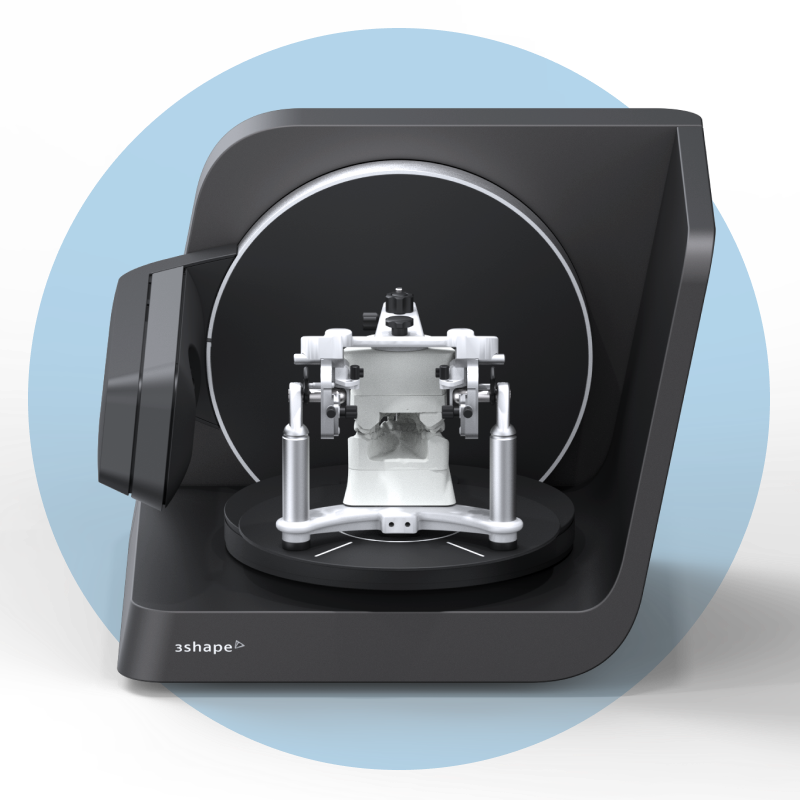
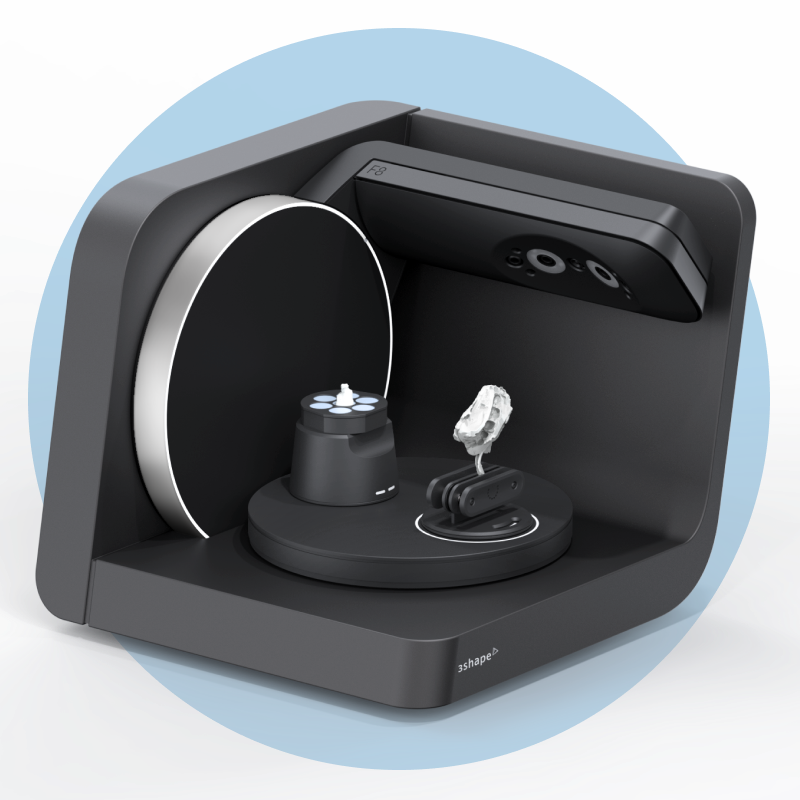
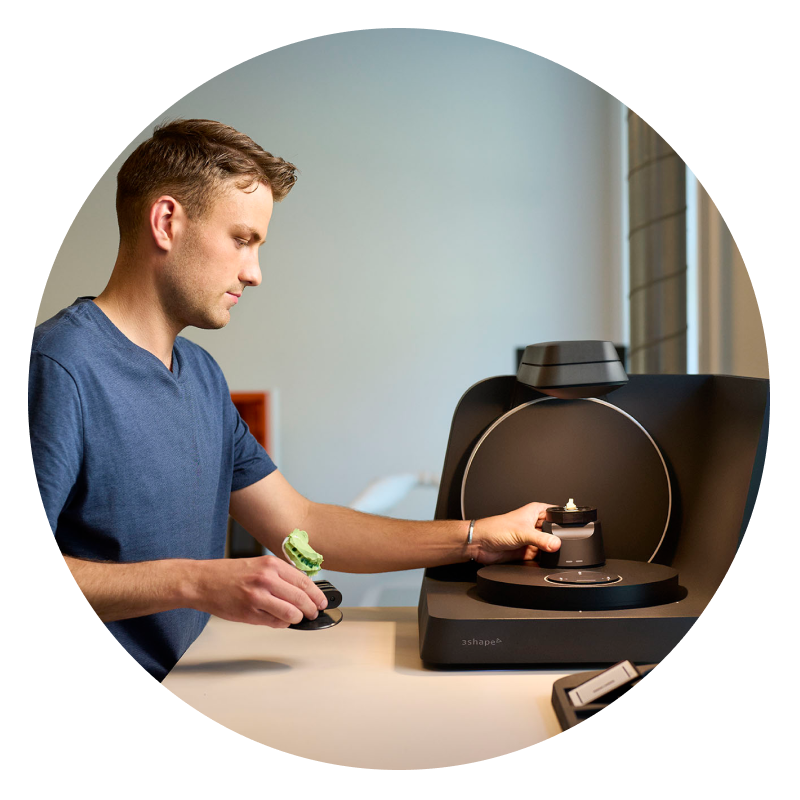
F8 features an open scanner design that is engineered for quick and easy scanning. Reduce technicians’ hands-on time with the intuitive place-and-scan magnetic system and auto-start functionality, and connect to multiple workstations via ethernet.
2. More versatility.
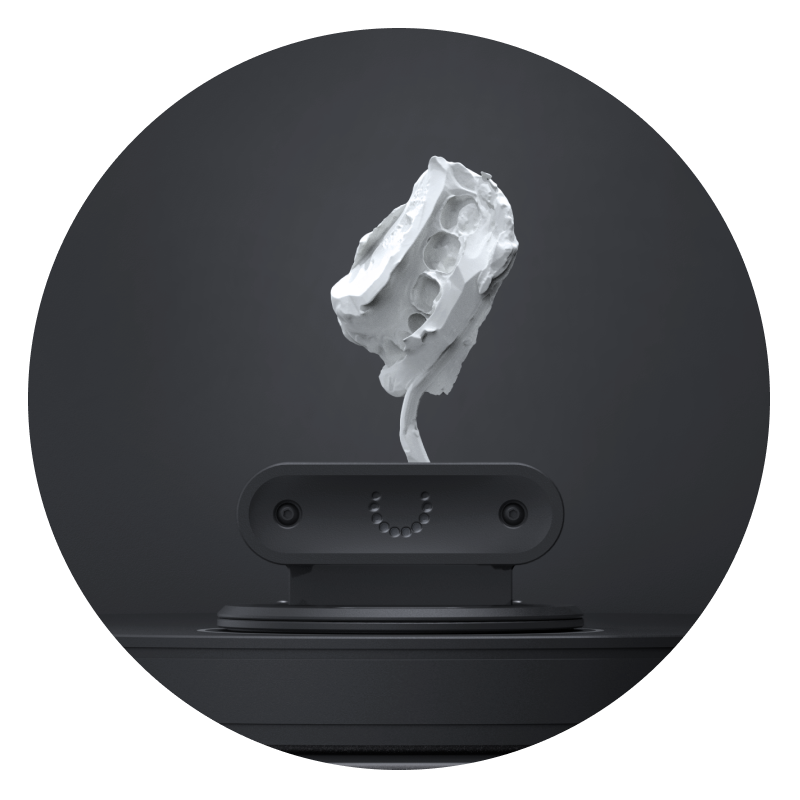
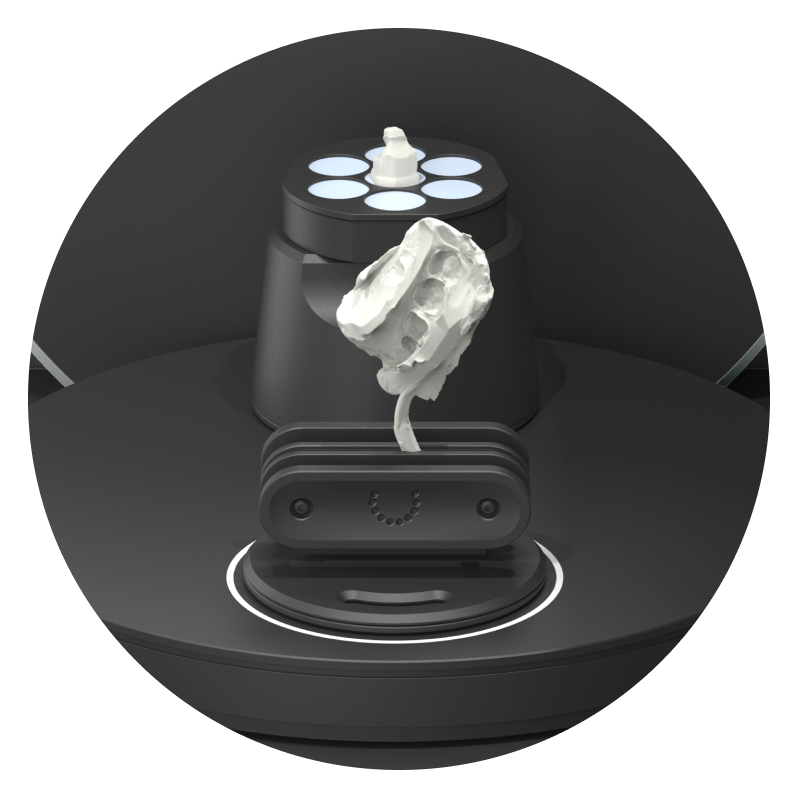
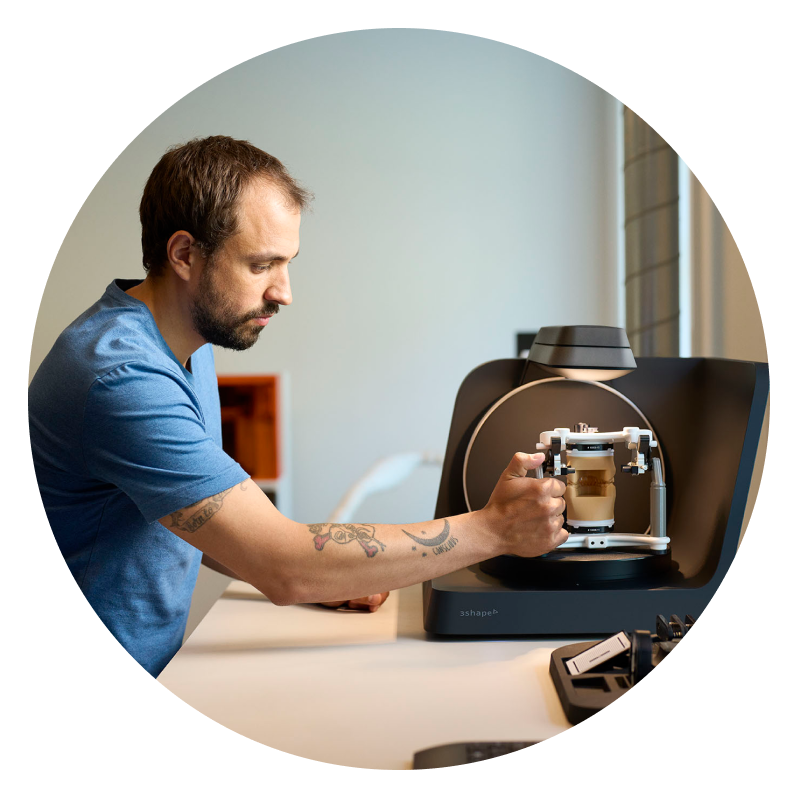
Provide, with unparalleled ease, a complete range of quality services to your clinics. F8 introduces new scanner tools that aid more workflows and support older tools, too. With a complete range of indication workflows, including upper/lower, die-in-model, articulator and impressions, you can now intuitively bring every analog case into your digital workflow.
3. More speed.
Stay on top of your caseload with lean, automated scan-to-design workflows. With a scan speed of 9 seconds* and our leanest scan-to-design workflows yet**, you will speed through cases.


Delivery Included




If you're about to invest in dental equipment, you could be able to combine your costs and benefit from Advance.
Eligible customers will receive a rebate based on their merchandise and clear aligner spend, which can help cover the cost of your equipment.

Henry Schein Advance
If you're about to invest in dental equipment, you could be able to combine your costs and benefit from Advance.
Eligible customers will receive a rebate based on their merchandise and clear aligner spend, which can help cover the cost of your equipment.
Henry Schein Advance
If you're about to invest in dental equipment, you could be able to combine your costs and benefit from Advance.
Eligible customers will receive a rebate based on their merchandise and clear aligner spend, which can help cover the cost of your equipment.
Manuals/Docs

3Shape-Dental-System-Product-Catalog

On which positions should I place my two models (upper and lower)?


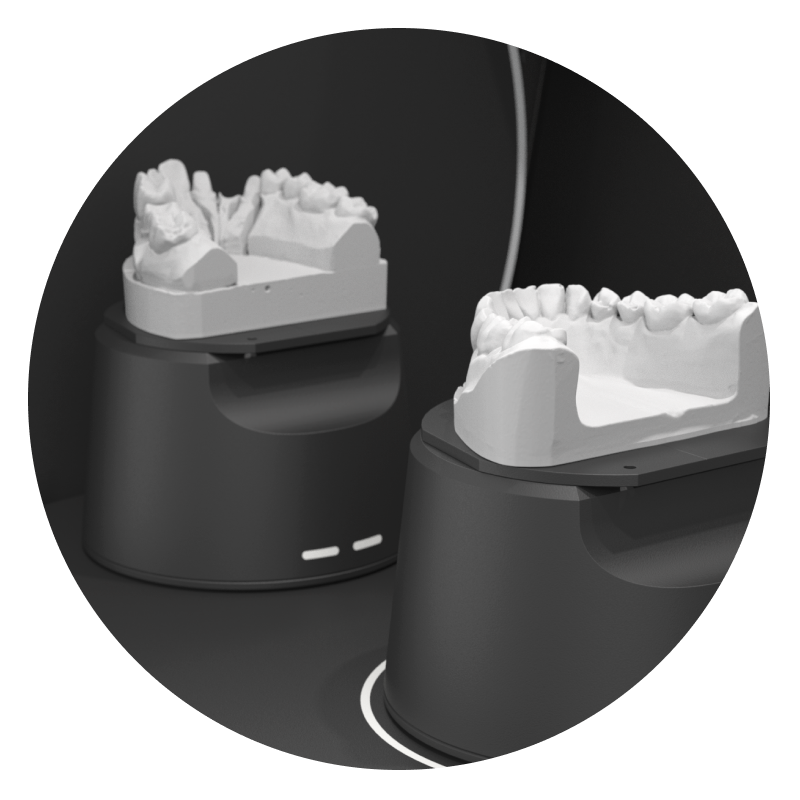
When scanning two models, upper should always be placed on position 2 and always lower on position 1. For single model workflows use position 1 (both for upper and lower models).
How do I use Auto-start?
For dual model workflows: first place the upper model on position 2 and lower model on position 1. After lower model is placed Auto-start will initiate the scanning.
For single model workflows: Place the model on position 1 and scanning will start.
Auto-start is always initiated on position 1
Auto-start is deactivated for calibration and articulator scanning
Can I adjust the position of the scanner arm?
Yes, in the settings menu you can chose to change the scanner arm start position to top position.
Do I need to fixate the articulator during articulator scanning?
No, you just need to place the articulator correct on the articulator plate and start scanning. Auto-start is deactivated for articulator scanning to give you more time for correct placement
What happens if I touch the scanner arm during scanning?
You should stop the workflow and calibrate the scanner to ensure the best scan quality
When should I use the transfer podiums?
Transfer podiums are used together with transfer plates to ensure the tall models are within the scan volume. Height adaptors are for interface plates and all legacy tools
Can I scan all types of impression in the vertical tray fixture?
No, the vertical tray fixture is currently only for triple tray impression, but single trays can be scanned using blue tack or horizontal impression fixtures
Is express replacement a service available for all F8 scanners?
Yes, express replacement is for all F8 scanners
Can I use my legacy tools from D and E scanners?
Yes, all indication tools are supported in F8.
D and E scanner height adaptors are not supported and the articulator holder for E scanners are not supported either.
How can I share my F8 with multiple workstations in my lab?
There are two ways to share a scanner: remote scanning (local host) or using a server client solution
Can I plug the ethernet cable directly into the wall socket and start scanning?
No, this is currently not recommended. The recommended setup advice you to connect the scanner directly into the PC. Scanner performance can be significantly affected by using ethernet-to-USB adaptors or scan through wall socket.

Enquire Now
Ready to buy new equipment? Speak with our equipment specialist today.Share


Services and Solutions
)
Henry Schein Direct
Streamline your next equipment purchase with Henry Schein Direct, offering fast-track equipment, remote demonstrations, and expert support – wherever you are.

)
SunSchein Clearance
SunSchein offers a wide range of ex-showroom and ex-demonstration dental equipment, including treatment centres, laboratory equipment, and digital dentistry equipment.
)
)
Henry Schein Financial Services
A vast range of financial products and services that are offered through our finance partners nationally
)
Increasing your practice value
By investing in latest technologies, updating your equipment, and increasing your availability with a new surgery room, you can attract new patients, improve the quality of care you offer, and differentiate your practice from competitors.
)