


 Back
Back





























Plug into the future – ready for the dental practices of tomorrow
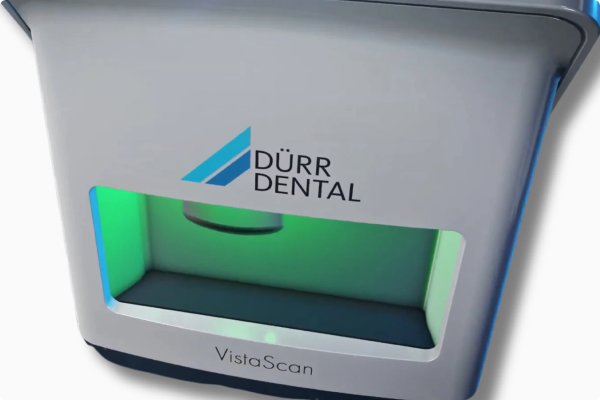
Not just the design of the new VistaScan Mini View 2.0 is futuristic. The technology behind it is just as pioneering. The image plate scanner uses the state-of-the-art VistaScan image plates IQ to support the latest generation of AI functions. In conjunction with the VistaScan Smart Reader, workflows are easily automated. Together with superior image quality, it makes your dental practice sustainably ready for the future.
Unlock the full potential of your practice
Not only is the design of the new VistaScan Mini View 2.0 futuristic. The technology behind it is just as pioneering. It uses the latest image plate technology and works together with VistaScan IQ image plates to open up many new AI-based features.
With Smart Scan Workflow, work becomes even more efficient thanks to the ability to link IQ image plates directly to the patient. Together with the superior image quality of the tried-and-tested PCS technology, this new system will make your dental practice completely fit for the future.
Features:
- Exceptional image quality
- High-resolution large glass touchscreen
- ScanManager for efficient working
- For all intraoral formats
- Scanning without a PC is possible
- PC connection via WLAN/LAN
- Ambient light
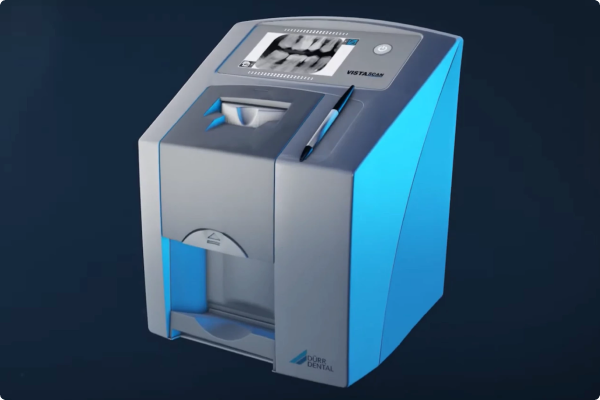
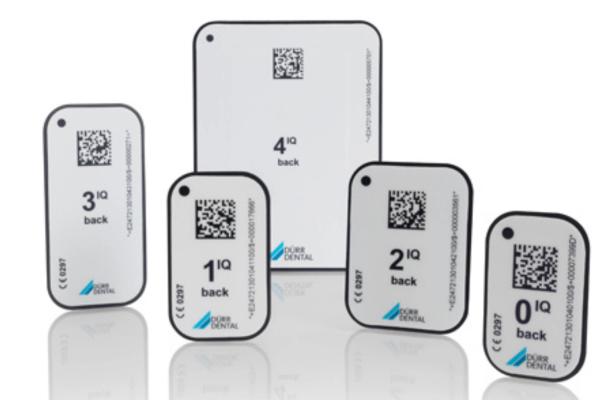
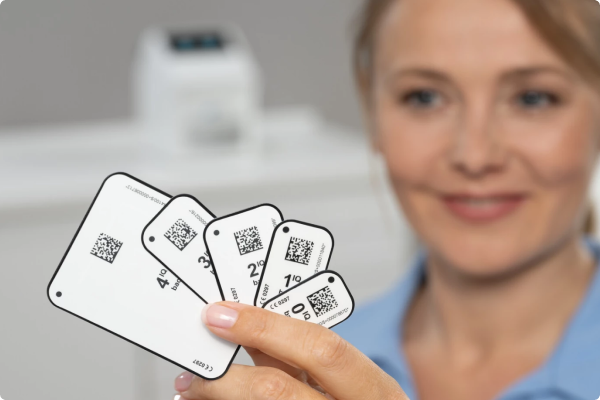
All intraoral formats : You can use all intraoral image plate formats with the VistaScan Mini View 2.0 - from size 0 to size 4. The process is as easy as for analogue film.
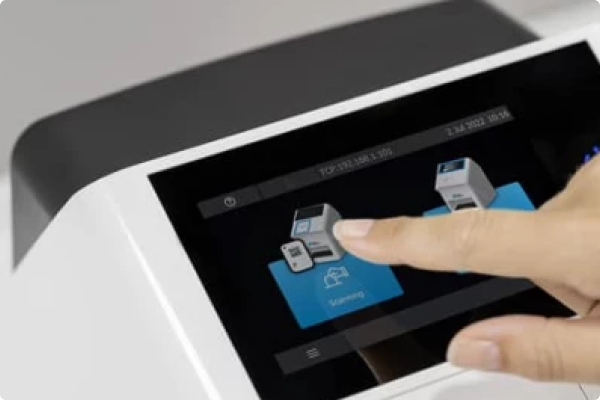
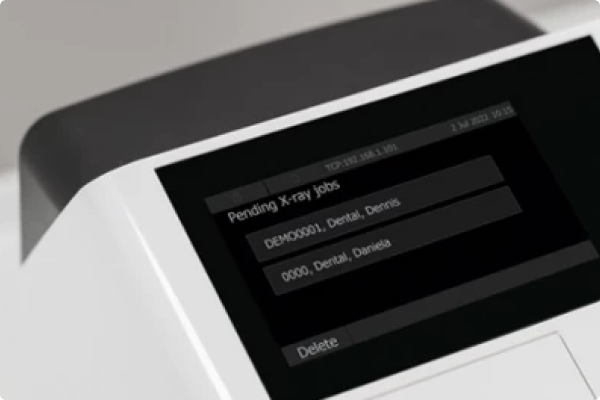
Convenient touchscreen : The colour 5“ touchscreen display provides a user interface that is very easy to use. It provides excellent image quality.
ScanManager - for even more efficient work : Scanning tasks can be sent simultaneously from different workstations to VistaScan Mini View 2.0. Select the required task on the display, carry out the scan and perform a diagnosis on the PC screen straight away.
Scanning without a PC is possible : Thanks to the standalone mode, you can also work independently of the network. Images are stored temporarily in the internal memory of the device and then transmitted to the database later on.
Quick and easy scanning : With the Easy Feed concept you can scan image plates very quickly, one after the other. The interchangeable inserts make it possible to digitise all intraoral image plate formats.
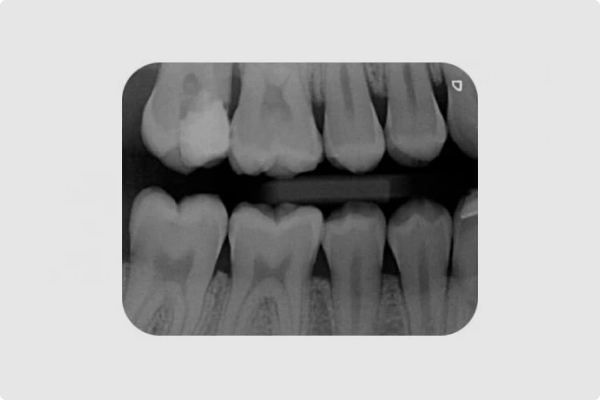
Excellent image quality : Thanks to PCS technology, VistaScan Mini View 2.0 can reliably highlight incipient caries lesions or make the tiniest bone structures visible.
Ambient lighting : The LED lighting of the VistaScan Mini View 2.0 will add a nice touch of colour to your practice. You can freely choose a colour that best suits the look and feel of your interior design.
VistaSoft AI automation included : The VistaSoft package gives you access to powerful AI-based features that can automate day-to-day work routines and thus make them noticeably more efficient.
Sustainability built in from the start
All our image plate scanners are manufactured with sustainability in mind, and our goal is to achieve CO² neutral production. Other divisions of Dürr Dental are also committed to using resources in the most responsible way possible. With all of our products, it is important for us that we continue to improve energy efficiency and maximise service life by making all our units easy to repair and service. And, of course, last but not least everything is packaged in a safe and eco-friendly way.


Delivery Included




Streamline your next equipment purchase with Henry Schein Direct, offering fast-track equipment, remote demonstrations, and expert support – wherever you are.

Serving You Remotely, The Henry Schein Way
Streamline your next equipment purchase with Henry Schein Direct, offering fast-track equipment, remote demonstrations, and expert support – wherever you are.
Serving You Remotely, The Henry Schein Way
Streamline your next equipment purchase with Henry Schein Direct, offering fast-track equipment, remote demonstrations, and expert support – wherever you are.

If you're about to invest in dental equipment, you could be able to combine your costs and benefit from Advance.
Eligible customers will receive a rebate based on their merchandise and clear aligner spend, which can help cover the cost of your equipment.
Henry Schein Advance
If you're about to invest in dental equipment, you could be able to combine your costs and benefit from Advance.
Eligible customers will receive a rebate based on their merchandise and clear aligner spend, which can help cover the cost of your equipment.
Henry Schein Advance
If you're about to invest in dental equipment, you could be able to combine your costs and benefit from Advance.
Eligible customers will receive a rebate based on their merchandise and clear aligner spend, which can help cover the cost of your equipment.
Manuals/Docs

Vistascan-Mini-View-Brochure


Enquire Now
Ready to buy new equipment? Speak with our equipment specialist today.Recommended maintenance schedule


Only specialist or personnel trained by Durr Dental may maintain the appliance.
Before opening the appliance, power it down (e. g. remove plug).
The recommended maintenance intervals are based on operating the appliance with 15 intraoral images per day and 220 working days per year.
Annual
-
Visually inspect appliance.
-
Check image plates for scratches, replace if necessary.
Every 3 years
-
Replace wiper blade set.
-
Replace roller fixtures.
-
Replace drive belt.
Cleaning and Disinfecting
Unsuitable agents and methods can damage the appliance and accessories
- Only use the disinfection and cleaning agents specified or approved by Durr Dental.
- Observe the instructions for use of the disinfection and cleaning agents.
- Wear protective gloves.
Image plate scanner
Unit surfaces
The unit surface must be cleaned and disinfected of contamination or soiling. Use the following cleaning and disinfectant agents:
-
FD 322 Quick-acting disinfection
-
FD 333 Quick-acting disinfection
-
FD 350 Disinfection wipes
Liquid can cause damage to the appliance
-
Do not spray the appliance with cleaning and disinfectant agents.
-
Make sure that liquid does not get inside the appliance.
-
Remove any soiling with a soft, wet, lint-free cloth.
-
Disinfect the surface with a disinfection wipe. Alternatively, use a spray disinfectant on a soft, lint-free cloth. Observe the disinfectants instructions for use.
Input unit
The input unit must be cleaned and disinfected if there is any sign of contamination or visible dirt.
For wiping disinfection, use the following cleaning and disinfectant agents:
-
FD 322 Quick-acting disinfection
-
FD 333 Quick-acting disinfection
-
FD 350 Disinfection wipes
For immersion disinfection, use the following cleaning and disinfectant agents:
-
ID 213 Instrument disinfectant
-
ID 212
-
ID212 forte
Heat damages plastic parts
-
Do not treat parts of the appliance with a thermal disinfector or steam steriliser.
-
Tap the touch screen Image display. The locking plate moves into the cleaning position.
-
Press the unlocking button and remove the cover upwards at the same time.
-
Lift the locking plate up and off.
-
Clean the cover, locking plate and inside parts with a moist, soft, lint-free cloth.
-
Disinfect the cover, locking plate and inside parts with a disinfection wipe. Alternatively, use a spray disinfectant on a soft, lint-free cloth. Observe the disinfectant instructions for use. The cover and locking unit can also be disinfected in an immersion disinfection system.
-
Remount locking unit.
-
Remount cover.
-
Tap on touch screen OK.
-
The locking plate moves into the starting position.
Light protection cover
The surface must be cleaned and disinfected of contamination or soiling. Use the following cleaning and disinfectant agents:
- FD 322 Quick-acting disinfection
- FD 333 Quick-acting disinfection
- FD 350 Disinfection wipes
- Disinfect the light protection cover with a disinfection wipe before and after placement. Alternatively, use a spray disinfectant on a soft, lint-free cloth. Observe the disinfectant instructions for use.
- Allow the light protection cover to dry fully before using.
Image plate
Use the following cleaning agents:
- Image plate cleaning cloth
Heat or humidity damages the image plate
- Do not steam sterilise the image plate.
- Do not immerse-disinfect the image plate.
- Only use approved cleaning agents.
- Soiling on both sides of the image plate should be cleaned off with a soft, lint-free cloth prior to each use.
- Remove resistant or dried on dirt with the image plate cleaning cloth. Observe the cleaning cloth instructions for use.
- Allow the image plate to dry fully before use.
Stylus pen for touch screen
The stylus can be cleaned the same as the unit.
Introduction
Detailed below is a list of messages which may appear on your unit or errors which you may experience. Click on a message to see what this means and what action should be taken.
Before working on the appliance unplug at the mains and remove all power.
Messages below include defective radiograph, software errors, errors on the appliance and error messages on the touchscreen.
If you do not find the problem below or the action you take does not solve the problem, please contact our support team on 08700 10 20 46. In order to help you, have the serial number of your unit and a description of the error.
Fault code -78
Possible Cause
Memory card is full.
Action
Transmit image data to computer.
Insert empty memory card.
Error code -1154
Possible Cause
Internal communication fault.
Action
Switch the appliance off/on.
Error code -1160
Possible Cause
Final radiation deflector rotation speed not achieved.
Action
Call our service team on 0800 028 4749.
Replace the deflector subassembly if problem regularly occurs.
Fault code -1170
Possible Cause
SOL-Sensor Timeout.
Fault with laser or SOL-sensor.
Action
Switch the appliance off and on.
Call our service team on 0800 028 4749.
Error code- 1116
Possible Cause
Insertion drive blocked.
Action
Release blockage.
Call our service team on 0800 028 4749.
Error code- 1117
Possible Cause
Position fault at insertion.
Action
Call our service team on 0800 028 4749.
Check input unit (freedom of movement, drive belt).
Error code - 1118
Possible Cause
Input unit cover open.
Action
Close cover.
Deactivate cleaning mode.
Error code - 1121
Possible Cause
Fixing unit missing at input unit.
Action
Insert the fixing unit.
Deactivate cleaning mode.
Error code -1153
Possible Cause
Subassembly fault.
Action
Switch the appliance off/on.
Error code -1104
Possible Cause
Erasure unit fault.
Action
Call our service team on 0800 028 4749.
Replace erasure unit.
Loud noises during operation after switching on, longer than 30 seconds
Possible Cause
Radiation deflector defective.
Action
Call our service team on 0800 028 4749.
Appliance does not react
Possible Cause
Appliance has not yet completed boot procedure.
Action
Wait 20 - 30 seconds after switching on until the boot procedure has completed.
Possible Cause
Appliance is blocked by the firewall.
Action
Enable the ports for the appliance in the firewall.
Error code -1010
Possible Cause
Temperature of unit too high.
Action
Allow unit to cool down.
Call our service team on 0800 028 4749.
Error code -1022
Possible Cause
Subassembly not initialised.
Action
Software error, if necessary update software.
Call our service team on 0800 028 4749.
Error code -1100
Possible Cause
Scanning process has exceeded allotted time allowance.
Action
Call our service team on 0800 028 4749.
Check belt drive.
Check blockage, remove image plate from unit.
Unit is on, but no display on touch screen
Possible Cause
Touch screen initialisation fault.
Action
Switch the appliance off and on.
Possible Cause
Touch screen defect.
Action
Call our service team on 0800 028 4749.
Error in data transmission between appliance and computer. \"CRC Error Timeout\" error message
Possible Cause
Wrong or too long connecting cable used.
Action
Only use original cable.
Appliance does not switch on
Possible Cause
No supply voltage.
Action
Check mains cable and plug connection, replace if necessary.
Check power unit.
If the green display does not light, replace the power unit.
Check the main fuse box in building.
Possible Cause
On/off switch defective.
Action
Call our service team on 0800 028 4749.
Appliance switches back off after a short time
Possible Cause
Mains cable or one of the plugs has not been inserted correctly.
Action
Check the mains cable and all connections.
Possible Cause
Hardware defective.
Action
Call our service team on 0800 028 4749.
Possible Cause
Mains supply voltage too low.
Action
Check the supply voltage.
Appliance does not appear in the VistaConfig options list
Possible Cause
Appliance is set up behind a router.
Action
Configure IP address without intermediate router on the appliance.
Connect the router in between again.
Manually enter the IP address in VistaConfig and register the appliance.
Appliance appears in the VistaConfig options list but connection is not possible
Possible Cause
Subnet masks of the computer and the appliance do not agree.
Action
Check subnet masks, match if necessary.
\"E2490\" error
Possible Cause
Appliance connection has been lost while software still wants to contact the appliance.
Action
Restore the appliance connection.
Repeat procedure.
Software Error: Incorrect power unit
Possible Cause
Incorrect power unit has been connected.
Action
Use the power unit provided.
Software Error: Excessive heating
Possible Cause
Laser or erasure unit too hot.
Action
Switch off the appliance and allow to cool.
Software Error: Erasure unit fault
Possible Cause
LED defective.
Action
Call our service team on 0800 028 4749.
Software Error: Imaging software does not detect the appliance
Possible Cause
Appliance not switched on.
Action
Switch the appliance on.
Possible Cause
Connecting cable between appliance and computer not connected correctly.
Action
Check the connecting cable.
Possible Cause
Computer does not detect connection to the appliance.
Action
Check the connecting cable.
Check network setting (IP address and subnet mask).
Possible Cause
Hardware fault.
Action
Call our service team on 0800 028 4749.
Software Error: Too much ambient light
Possible Cause
Appliance is exposed to too much light.
Action
Darken the room.
Turn the appliance so that the light does not reach the entry slot directly.
X-ray image has small light dots or clouding
Possible Cause
Micro scratches on the image plate.
Action
Replace image plate.
Lamination of the image plate detached at the edge
Possible Cause
Wrong holding system used.
Action
Only use original image plates and film holding system.
Possible Cause
Image plate handled incorrectly.
Action
Use the image plate correctly.
Heed the operating instructions of the image plate and film holding system.
X-ray image is distorted lengthways with light, horizontal stripes
Possible Cause
Wrong light protection cover or image plate used.
Action
Only use original accessories.
X-ray image split vertically into two halves
Possible Cause
Dirt in the laser slit (e.g. hair, dust).
Action
Clean laser slit.
Horizontal, grey lines on the X-ray image, beyond the left and right image edge
Possible Cause
Slipping transport.
Action
Clean transport mechanism, replace transport belts if necessary.
Light stripes in the scanning window
Possible Cause
Too much stray light entered during scanning.
Action
Darken the room.
Turn the appliance so that the light does not fall directly onto the input unit.
X-ray exposure has stripes on image
Possible Cause
Image plate pre-exposed, e.g. by natural radiation or scattered X-ray radiation.
Action
If the image plate has been stored for longer than one week, erase the image plate again prior to use.
Possible Cause
Parts of the image plate were exposed to light during handling.
Action
Do not expose used image plates to bright light.
Read image data within 30 minutes of the exposure.
Possible Cause
Image plate was soiled or scratched.
Action
Clean image plate.
Replace scratched image plate.
Software cannot combine the data to make a complete image
Possible Cause
X-ray dose on the image plate too low.
Action
Increase X-ray dose.
Possible Cause
Amplification level (HV value) set too low in the software.
Action
Increase amplification (HV value).
Possible Cause
Unsuitable scanning mode selected.
Action
Select a suitable scanning mode.
Possible Cause
Threshold setting too high.
Action
Reduce threshold setting.
X-ray image cut off, a part missing
Possible Cause
Metal part of the X-ray tube is in front of the X-ray beam.
Action
When taking an X-ray, make sure there are no metal parts between the X-ray tube and patient.
Check the X-ray tube.
Possible Cause
Edge masking defective in the imaging software.
Action
Deactivate edge masking.
X-ray image mirrored on a corner
Possible Cause
Image plate bent during X-ray exposure.
Action
Do not bend the image plate.
Shadow on the X-ray image
Possible Cause
Image plate removed from the light protection cover before reading.
Action
Do not handle an image plate without a light protection cover.
Store the image plate in a light protection cover.
Ghost images or two exposures on the X-ray image
Possible Cause
Image plate double exposed.
Action
Only expose image plate once.
Possible Cause
Image plate not sufficiently erased.
Action
Check the erasure unit is working correctly.
Contact our service team on 0800 028 4749 if reoccurs.
Round shadow on the X-ray image
Possible Cause
Plus ID image plate (with marker) exposed on the wrong side.
Action
When taking an X-ray make sure the active side points towards the X-ray tube.
X-ray image is mirror-inverted
Possible Cause
Image plate exposed on the wrong side.
Action
Place image plate correctly in light protection cover.
Position image plate correctly.
Top or bottom bulge in the X-ray image
Possible Cause
Image plate off-centre and fed at an angle.
Action
Centre image plate and feed straight.
X-ray image only shadowy
Possible Cause
X-ray dose on the image plate too low.
Action
Increase X-ray dose.
Possible Cause
Amplification level (HV value) set too low in the software.
Action
Increase amplification (HV value).
Possible Cause
Unsuitable scanning mode selected.
Action
Select a suitable scanning mode.
Possible Cause
Threshold setting too high.
Action
Reduce threshold setting.
X-ray image too bright
Possible Cause
Exposed image plate subject to effects of ambient light.
Action
Always read the image data of the image plate as quickly as possible.
Possible Cause
X-ray dose is too low.
Action
Check X-ray parameters.
Possible Cause
Incorrect brightness/contrast setting in the software.
Action
Set the brightness of the radiograph in the software.
X-ray image too dark
Possible Cause
X-ray dose too high.
Action
Check X-ray parameters.
Possible Cause
Incorrect brightness/contrast setting in the software.
Action
Set the brightness of the radiograph in the software.
X-ray image does not appear on the monitor after scanning
Possible Cause
Image plate has been fed the wrong way round and the inactive side has been read out.
Action
Immediately read the image plate again, inserting the image plate correctly.
Possible Cause
Image data on the image plate was erased, e.g. by ambient light.
Action
Always read the image data of the image plate as quickly as possible.
Possible Cause
Fault in the appliance.
Action
Call our service team on 0800 028 4749.
Possible Cause
No image data on image plate, image plate not exposed.
Action
Expose image plate.
Possible Cause
X-ray appliance is faulty.
Action
Call our service team on 0800 028 4749.
Fault code -10000
Possible Cause
Too much ambient light surrounding unit.
Action
Darken room.
Turn the unit so that no light can fall directly onto entry slot.
Fault code -10017
Possible Cause
Unit switches off.
Action
Wait until the unit has shut down.
Firmware not running
Possible Cause
Firmware update not carried out.
Action
Switch the appliance off and on.
Possible Cause
Internal communication fault.
Action
Switch the appliance off and on.
Share


